Proofpoint
Proofpoint helps protect your Cal Poly Humboldt email by blocking spam, phishing attempts, and malicious attachments before they reach your inbox. It also gives you control over your email by allowing you to block or allow messages from specific senders.
Overview of Proofpoint
Overview of Proofpoint
Overview of Proofpoint
Proofpoint helps protect your Cal Poly Humboldt email by blocking spam, phishing attempts, and malicious attachments before they reach your inbox. It also gives you control over your email by allowing you to block or allow messages from specific senders.
When Proofpoint quarantines an email, you will receive a notification message (the Daily Report). From that message, you can choose to:
- Release the email
- Allow Sender
- Block Sender
- Delete
These options help Proofpoint learn what is safe for you and reduce interruptions.
Proofpoint vs. Gmail Spam: What’s the Difference?
While both tools protect your inbox, they handle messages at different stages:
- Proofpoint (The Gatekeeper): This system filters email before it reaches your Cal Poly Humboldt Gmail account. If Proofpoint identifies a message as high-risk or clear spam, it holds it in "Quarantine" and notifies you via the Daily Report.
- Gmail Spam Folder: This is Google’s internal filter. If a message passes through Proofpoint but Google still finds it suspicious, it will land in your Gmail "Spam" folder.
Pro-Tip: If you are looking for a missing email, check your Proofpoint Daily Report first, then your Gmail Spam folder.
What Will I Need To Do With Proofpoint?
Most of the time, Proofpoint works automatically in the background. Occasionally, you may want to review your quarantined messages to make sure a legitimate email was not blocked.
With Proofpoint, you can:
- Release a specific email that has been quarantined.
- Add a sender to your Safe Senders List.
- Block unwanted senders.
- Choose to receive a Spam Protection Daily Report showing emails currently in quarantine.
- Request an email containing your Safe Senders List and Blocked Senders List.
Additional actions, such as marking messages as Not Spam, are available in the Proofpoint web application. Taking a few moments to manage these settings can help improve your email experience over time.
Working With the Spam Protection Daily Report and Proofpoint Settings
Working With the Spam Protection Daily Report and Proofpoint Settings
This page explains how to use the Proofpoint Spam Protection Daily Report and how to manage your Proofpoint settings, including releasing emails, managing safe and blocked senders, and reviewing quarantined messages.
What is the Spam Protection Daily Report?
Proofpoint works automatically in the background to protect your Cal Poly Humboldt email by blocking spam, phishing attempts, and malicious attachments. To ensure you stay in control of your mail, you will receive a Spam Protection Daily Report whenever messages intended for you have been quarantined.
This report allows you to:
- Monitor Accuracy: Quickly review messages to ensure legitimate emails weren't accidentally blocked.
- Take Action: Decide if a message should be released to your inbox or if the sender should be permanently allowed or blocked.
- Manage Your Account: Use the blue Manage My Account buttom to log into the full Proofpoint web app for advanced settings.
Actions You Can Take

Under each quarantined email, you will see a row of four buttons:
- Release: Delivers the email to your inbox immediately.
- Allow Sender: Delivers the email and adds the sender to your Safe Senders List so future emails are never blocked.
- Block Sender: Ensures all future emails from this specific address are automatically blocked and move to quarantine.
- Delete: Removes the notification from your digest and deletes it from your quarantine folder
Note: Quarantined emails are automatically deleted after 30 days if no action is taken.
How to Manage Your Proofpoint Account
To manage your Proofpoint settings:
- Go to my.humboldt.edu
- Select Tools
- Choose My Quarantined Email
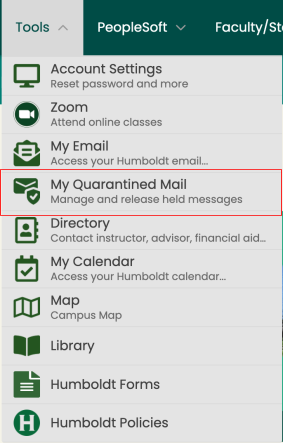
Selecting My Quarantined Email opens the Proofpoint web application. If prompted, log in using your campus email address and authenticate with Duo.
What You Can Do in the Proofpoint Web App
From the Proofpoint web application, you can:
- Review emails currently in quarantine
- Delete quarantined emails
- Release quarantined emails
- Mark emails as Not Spam
- Add senders to your Safe Senders List or Blocked Senders List
- Request a current Spam Protection Daily Report
- Request an email containing your Safe Senders and Blocked Senders lists
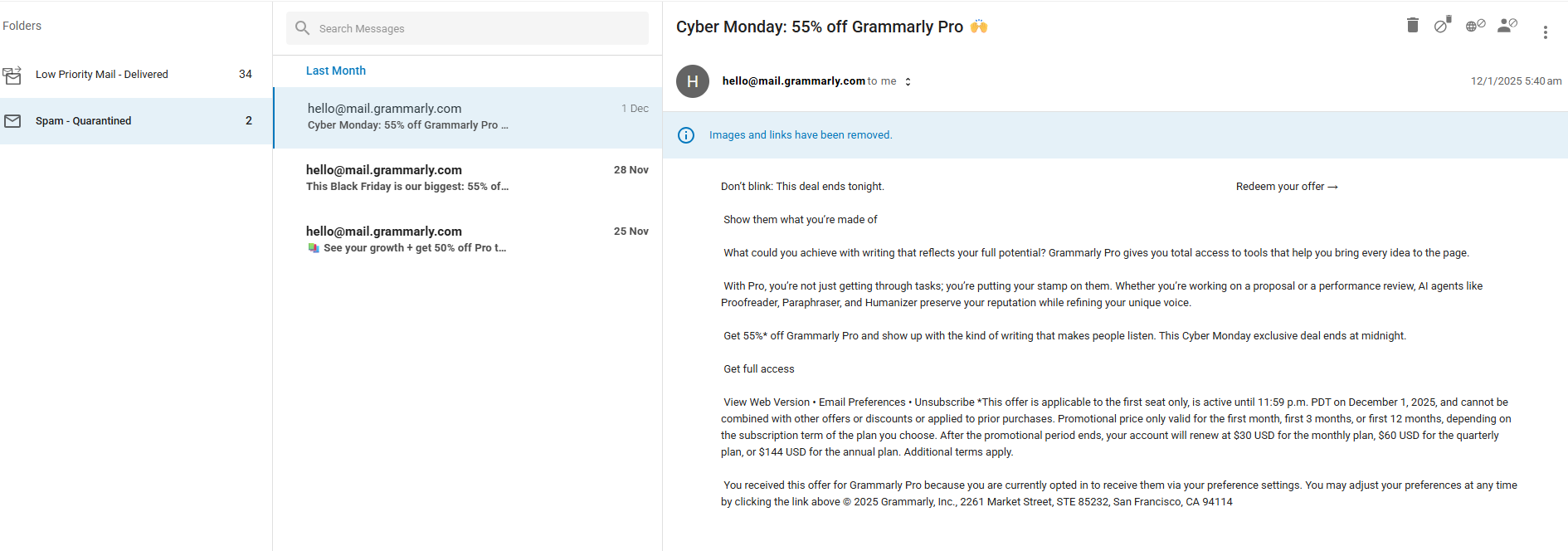
Using the Quarantine Folder
Select Quarantine to view all emails currently being held.
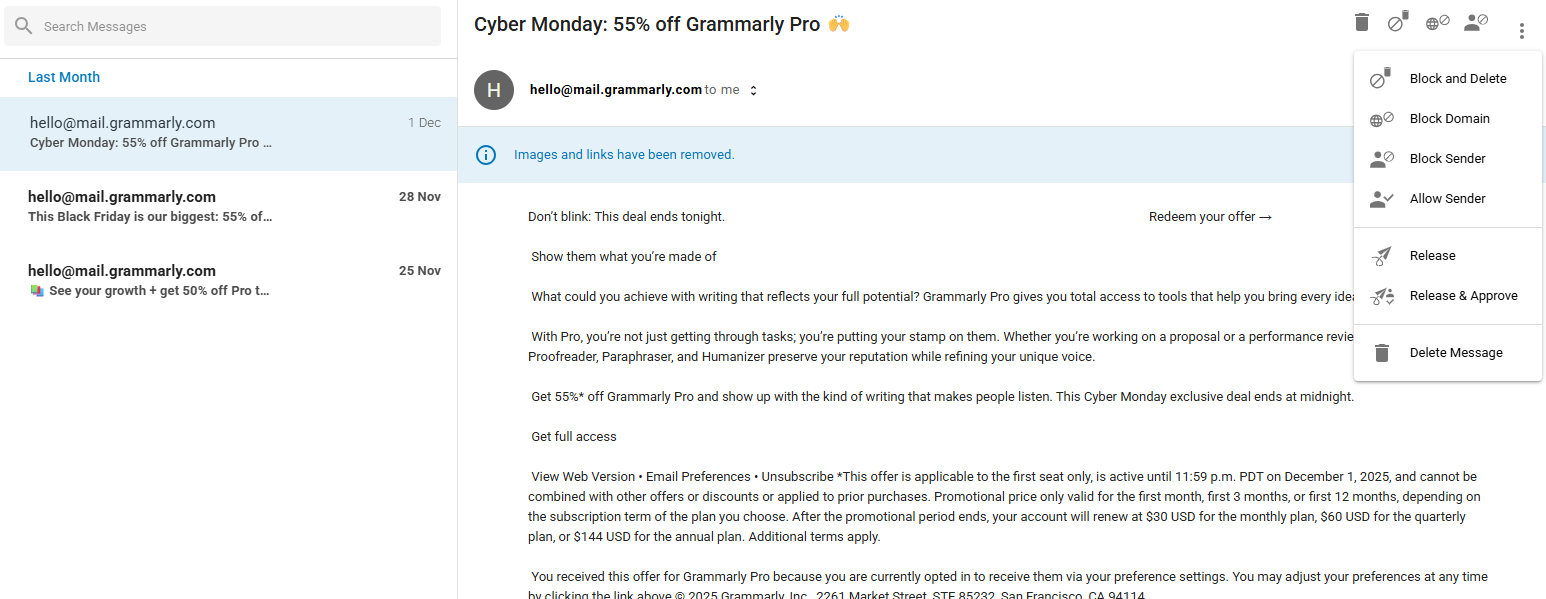
From this view, you can search for specific messages and take actions such as:
- Release
- Release and Approve (also shown as “Release and Allow Sender”): Adds sender to your Safe Senders list.
- Allow Sender
- Block Sender
- Block Domain
- Block and Delete
- Delete
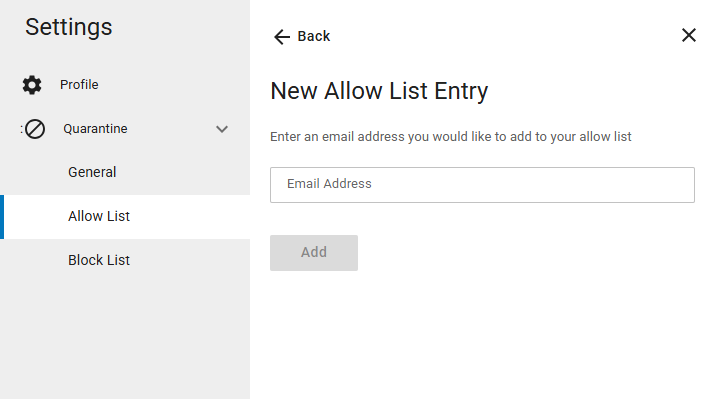
Allow List / Block List
From Settings, you can manually add email addresses or domains to your Allow List or Block List. This gives you more control over which messages reach your inbox.
Managing Departmental Email Accounts
If you manage a shared or departmental email account (e.g., dept-name@humboldt.edu), you will notice the process is slightly different. Because delegated users cannot sign into the Proofpoint portal as the shared account, we have simplified how these accounts handle "Bulk" or "Low Priority" mail.
How it Works for Department Accounts:
Automatic Delivery to Spam: To ensure delegates can see filtered mail without needing a separate login, Proofpoint is configured to deliver "Low Priority" and "Bulk" messages directly to the departmental account’s Spam folder in Gmail.
Reviewing Mail: If you are expecting a newsletter or automated report for a shared account, simply check the Spam label in that account's Gmail sidebar. You can "unspam" legitimate messages there as you normally would.
High-Security Protection: To protect the University, high-risk threats and phishing attempts are still blocked entirely by Proofpoint and will not appear in the Spam folder.
Report a Suspicious Email with PhishAlarm
Report a Suspicious Email with PhishAlarm
PhishAlarm makes it easy to report suspicious emails directly from Gmail. Reporting these messages helps protect the Cal Poly Humboldt community by alerting the Information Security Office to active phishing and scam campaigns.
How Do I Report a Suspicious Email?
Using Gmail in a Web Browser (Desktop or Laptop)
1. Open the email you want to report.
2. Locate the side panel on the right side of the Gmail window.
- Look for the PhishAlarm icon (a circular blue icon with a white fishhook).
- If the side panel is hidden, click the small white arrow (<) in the bottom-right corner of the screen to expand it.
3. Open PhishAlarm by clicking the icon.
- A panel titled “Report Suspicious” will appear.
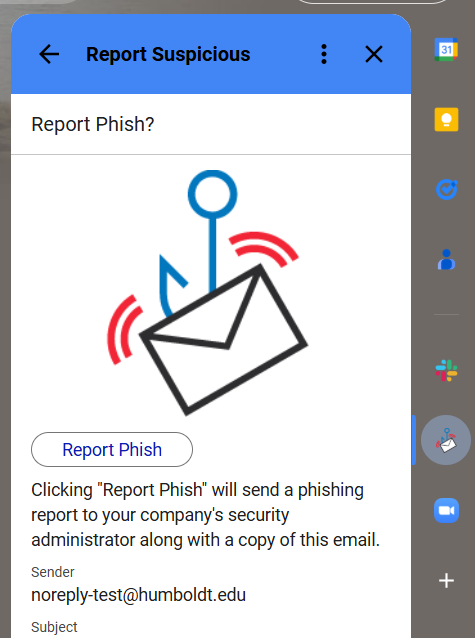
4. Submit the report by clicking Report As Suspicious.
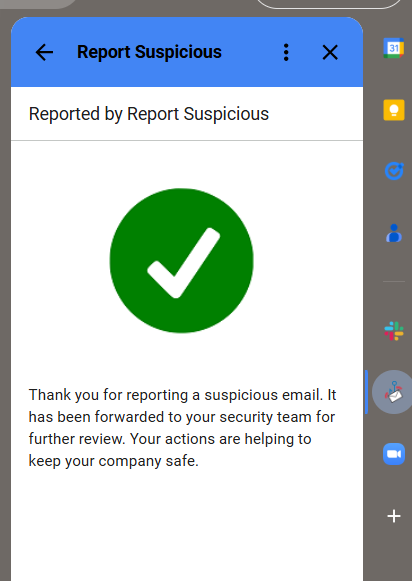
5. Confirmation
- You will see a confirmation message.
- The reported email will automatically be moved to your Trash folder.
Using the Gmail Mobile App (iOS or Android)
- Open the email in the Gmail app.
- Scroll to the bottom of the message content, past the signature and reply options.
- Under Available Add-ons, tap the PhishAlarm icon.
- Tap Report As Suspicious.
The email will be removed from your Inbox immediately.
What Happens After I Report an Email?
Once you report a message, the following steps occur:
Automated analysis
The email is reviewed by Proofpoint’s automated threat detection system.Classification notice
You will typically receive an automated follow-up email (often the same day) identifying the message as Malicious, Suspicious, or Low Risk.Safe messages
If the email is determined to be safe, it will remain in your Trash or Junk folder, where you can retrieve it if needed.
Need More Help?
Need More Help?
If you encounter difficulties accessing or using the Proofpoint portal, please contact the Technology Help Desk using the information below:
ITS Technology Help Desk
- Phone: 707-826-4357 (HELP)
- Email: help@humboldt.edu
- Location: Library Learning Commons, First Floor